The fastest way to export your recovery data is to open your app’s settings, find the data and export option, choose a format such as JSON, CSV, PDF, or ZIP, and download the file to your device. Which account mode you use matters: Private mode means we hold no key and can’t recover your data if you lose your passphrase, while Standard mode allows server-assisted recovery through email password resets.
TL;DR:
- Choose JSON or CSV to preserve timestamps, tags, and entry IDs for reuse; PDF is readable but loses metadata, while ZIP bundles attachments.
- Check your account mode first: Private mode offers no key recovery if you lose your passphrase, while Standard mode supports recovery through email password resets.
- Update the app, verify the correct account, and ensure enough storage and a stable wireless connection; large exports can take minutes and may fail.
- After exporting, verify the requested date range, metadata, and attachments, then keep an encrypted backup; use a PDF rather than raw structured files when sharing.
Table of Contents
- What to check before you export: account mode and storage
- Which export format should you choose?
- Step-by-step export workflow inside the app
- How to confirm the export is complete and portable
- Troubleshooting failed, partial, or corrupt exports
- Handling exported recovery data safely
- Why exporting your recovery data is worth doing
- 12Steps Supporter plan and where to find your export settings
- FAQ
What to check before you export: account mode and storage
Before you start, confirm a few basics so the export finishes cleanly the first time. A rushed export on an outdated app version or with low storage is the most common reason exports stall or arrive incomplete.
- Update the app to the latest version and sign in to the account you want to export.
- Check that your device has enough free storage, especially if you plan to include attachments.
- Connect to stable Wi-Fi rather than a weak mobile signal if your archive includes photos or voice notes.
Your account mode also changes what happens if something goes wrong. In Private mode, entries are encrypted on your device and we can’t read them or recover your key if it’s lost. In Standard mode, entries are also encrypted on the device, but email password resets mean our server can recover the key, which gives you a safety net at the cost of that zero-knowledge guarantee.
Pro Tip: If you’re not sure which mode you’re in, check your account settings before exporting rather than after, so you know exactly what recovery options exist if the export or your passphrase gets lost.
Which export format should you choose?
The format you pick determines whether your data is reusable later or just a readable snapshot. Structured formats and visual formats serve different purposes, and most recovery-journaling apps offer both.
- JSON or CSV: preserves individual fields, timestamps, tags, and entry IDs, which makes these formats the right choice if you ever want to import your data into another app or inspect it programmatically.
- PDF: gives you a clean, readable archive of your entries and step work, good for printing or sharing with a sponsor or therapist, but it typically loses the underlying metadata that a structured format keeps.
- ZIP: bundles multiple files together, including attachments like photos or voice memos, alongside the structured or visual export.
If your journaling includes meeting logs, step-work identifiers, or tagged entries, a structured export is what preserves that detail. Portability guidance generally recommends structured, machine-readable formats that keep metadata intact, since a format that only looks right on screen may not transfer meaning across systems. When attachments matter to you, confirm before exporting that the format you choose actually bundles them rather than leaving them behind.
Step-by-step export workflow inside the app
Run through this checklist before you tap export, then follow the steps below.
Pre-export checklist:
- App updated to the latest version
- Signed in to the correct account
- Account mode confirmed (Private or Standard)
- Enough free storage and a stable connection
Export steps:
- Open Settings, then look for Data & Export (naming may vary slightly by app version).
- Choose the scope: all entries, or a specific date range if you only need recent step work or a particular period.
- Select your format (JSON, CSV, PDF, or ZIP) and toggle on attachments if you want photos or voice notes included.
- Tap Export or Start Export and watch the progress indicator; small exports usually finish in seconds, while large archives with attachments can take a few minutes.
- Once processing completes, download or save the file. Depending on the app, it may land in your device’s downloads folder, arrive as a link, or get sent to your registered email.
Pro Tip: If a large export fails or times out, try narrowing the date range and exporting in smaller batches instead of requesting your entire history at once.
How to confirm the export is complete and portable
Once you have the file, don’t assume it worked. Open it and check.
- Open a PDF and confirm your most recent entries appear and the date range matches what you requested.
- Open a JSON or CSV file in a text editor or spreadsheet and check that field names, timestamps, tags, and entry bodies all show up correctly.
- Open a ZIP archive and confirm attachments are present and their metadata lines up with the entries they belong to.
- Keep a second copy of the export in an encrypted backup location rather than relying on a single file.
A useful portability check confirms your export preserves metadata like timestamps and entry IDs rather than just visual formatting, since that structure is what lets you import the file into another tool later without losing meaning.
Troubleshooting failed, partial, or corrupt exports
Most export problems trace back to a handful of causes.
- If the export fails outright, update the app, confirm a stable Wi-Fi connection, free up device storage, and try a smaller date range.
- If entries seem to be missing, double-check your filters and confirm you’re signed in to the account that actually holds those entries.
- If the archive won’t open, try a different archive tool before assuming the file is corrupt, then request a fresh export if it still fails.
- If you’re in Private mode and you’ve lost your encryption key, understand that we cannot recover it for you. Prevention, meaning secure key backups made before you need them, is the only real fix.
- When contacting support, include your account identifier, the export timestamp, your platform (iOS or Android), and a screenshot of any error message so the issue can be triaged quickly.
Handling exported recovery data safely
Treat an exported file the same way you’d treat any sensitive personal record, because that’s exactly what it is.
- Encrypt your backups and use a strong, unique passphrase rather than reusing one from another account.
- Store copies in a secure cloud service or an encrypted local drive rather than a shared or public folder.
- If you need to share your data, consider sharing a PDF snapshot rather than the raw JSON or CSV file, since the structured formats carry more metadata than most recipients need.
- Remember that in Private mode we hold no key and can’t recover a lost one, while in Standard mode email password resets mean our server can recover the key for you.
Pro Tip: If you ever feel unsafe or in crisis while reviewing old entries, Samaritans (116 123, UK and Ireland) and 988 (US) are available any time.
Why exporting your recovery data is worth doing
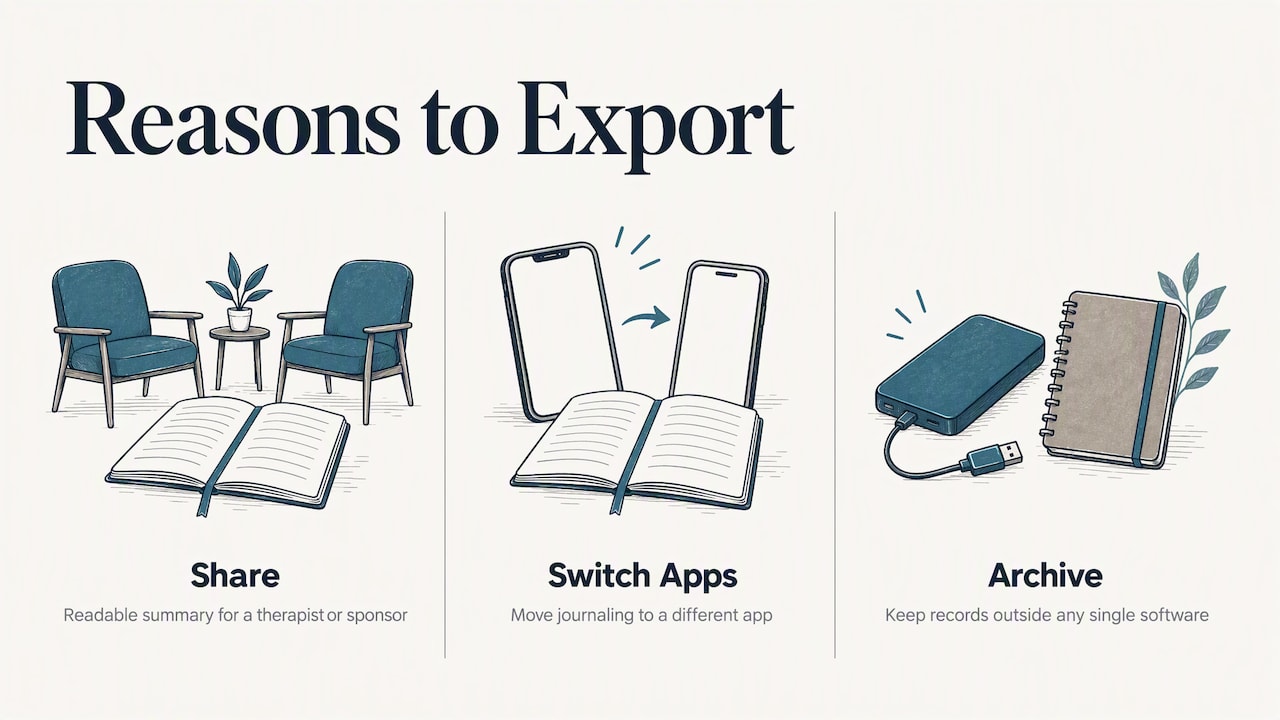
I’ve seen three practical reasons people export their journaling: to share a readable summary with a therapist or sponsor, to move to a different app, or simply to keep a long-term personal archive outside any single piece of software. None of those reasons require giving up privacy along the way.
What matters most is knowing which account mode you’re in before you need the export, not after. A privacy-first design only works if you understand what it actually protects and what it doesn’t.
— James
12Steps Supporter plan and where to find your export settings
We built full data export into 12Steps because your step work belongs to you, not to us. Every entry is encrypted on your device before it syncs, and which account mode you use determines what happens if you ever lose access: Private mode means we hold no key and genuinely can’t read your entries, while Standard mode trades some of that for the convenience of email-based password recovery.
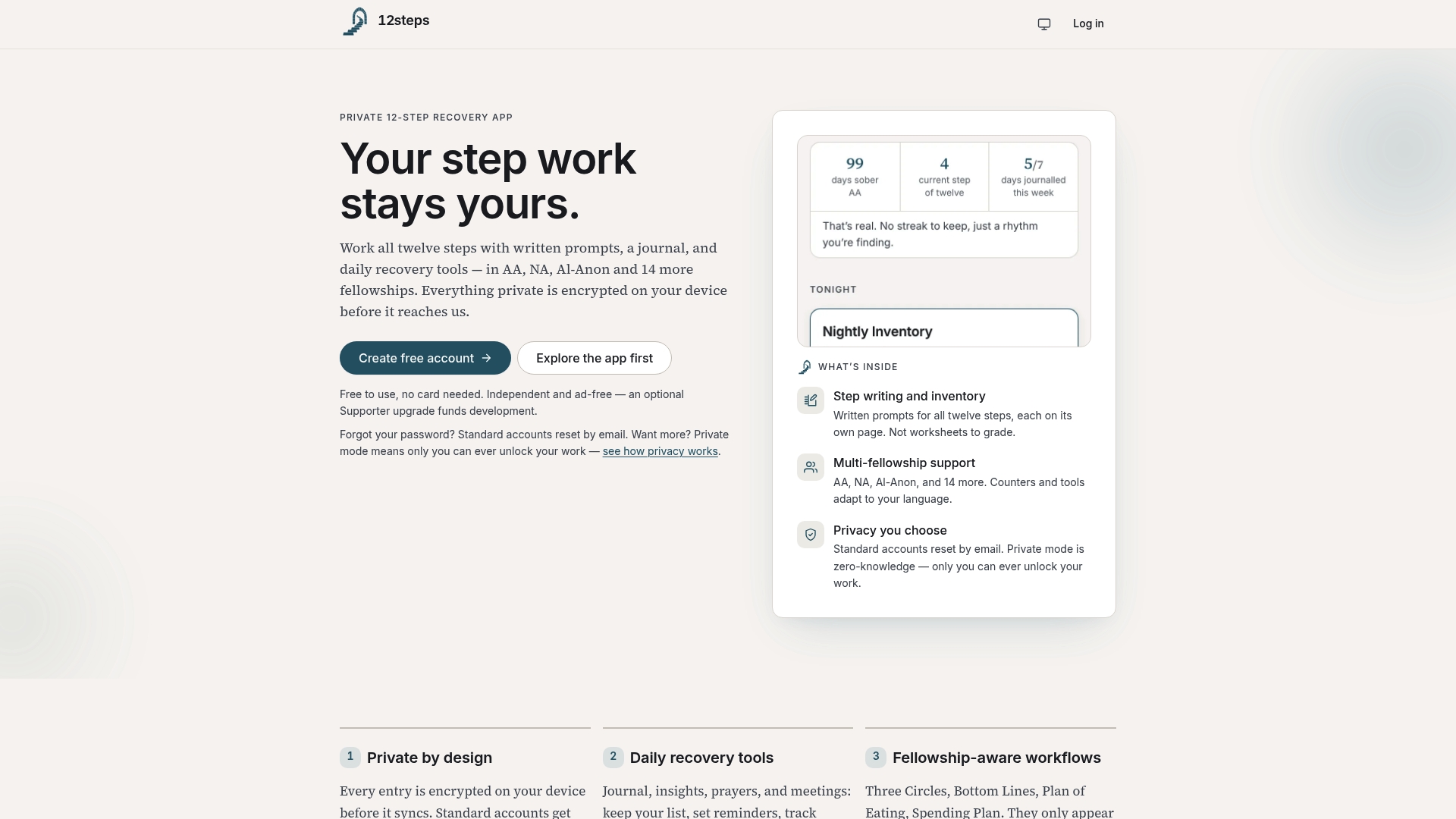
- Export settings live under Settings → Data & Export inside the 12Steps app.
- Routine backups, done monthly or after major step work, are the simplest way to avoid ever needing a support ticket.
- Supporting ongoing development costs a yearly fee through our Supporter plan.
| What you get | Detail |
|---|---|
| Account modes | Private (zero-knowledge) or Standard (email-recoverable) |
| Export formats | JSON, CSV, PDF, ZIP |
| Supporter plan | £12 per year |
If you’ve been relying on the free tier and want to back up your journey while helping fund continued development, the Supporter upgrade is the direct way to do that.
FAQ
What’s the difference between Private and Standard mode for exports?
In Private mode, entries are encrypted on your device and we hold no key, so we can’t read or recover them if you lose access. In Standard mode, entries are also encrypted on the device, but email password resets mean our server can recover the key, which affects what support can do if you get locked out.
Which file format should I use to export my recovery data?
Use JSON or CSV if you want a structured file that preserves timestamps, tags, and entry IDs for importing elsewhere. Use PDF if you want a readable snapshot to print or share, and ZIP if you need attachments bundled with your entries.
Can I import my exported data back into the app or another tool?
Yes, a structured export like JSON or CSV is designed to be reusable, provided the field names and metadata stay intact. Open the file first to confirm timestamps, tags, and entry bodies look correct before importing it anywhere.
What should I do if my export fails or the file won’t open?
Update the app, confirm a stable connection, free up storage, and try exporting a smaller date range rather than your entire history at once. If the file still won’t open, try a different archive tool and contact support with your account identifier, export timestamp, platform, and a screenshot of the error.
What happens if I lose my encryption key in Private mode?
If you’re in Private mode and lose your key, we cannot recover it because we never hold it in the first place. The only real protection is keeping a secure backup of your key or passphrase before you need it.