The fastest way to keep recovery alerts private is to hide notification previews on your phone and verify your smartwatch and widgets second. On an iPhone or Android device, that means turning off lock screen previews for your recovery app, including 12Steps, so no one glancing at your screen sees meeting reminders or journal prompts. Always test your changes afterward to confirm nothing slips through.
TL;DR:
- On iPhone, set Show Previews to When Unlocked or Never, then use Focus and disable lock screen alerts for especially sensitive apps.
- On Android, hide sensitive lock screen content and adjust individual notification channels; menu names vary, so search settings for lock screen notifications.
- Check Apple Watch delivery preferences, Hide Sensitive Complications, and recovery app widgets separately, then test each after updates because phone settings may not protect them.
- Rather than silencing the entire app, hide preview text while keeping a quiet badge or basic alert, so meeting reminders still reach you.
- 12Steps Private mode keeps entries encrypted on your device without a company held key; Standard mode permits server key recovery through email password resets.
Table of Contents
- How do I hide notification content on an iPhone?
- How do I hide notification content on Android?
- Why do watches and widgets need separate privacy checks?
- What other privacy tactics help beyond basic settings?
- How do you verify your privacy settings actually work?
- How does 12Steps protect your entries, and which mode should you choose?
- How do you adjust in-app notification settings in 12Steps?
- What are best practices for managing recovery app notifications overall?
- How do you clear notification history tied to recovery activity?
- Author perspective: practical, privacy-first advice for people in recovery
- A privacy-minded recovery app worth considering
- FAQ
- Sources
How do I hide notification content on an iPhone?
iOS gives you several layers of control, and stacking them works better than relying on just one setting.
- Open Settings > Notifications, select your recovery app, tap Show Previews, and choose Never or When Unlocked so notification text stays hidden on a locked screen.
- In the same app’s notification settings, turn off Lock Screen alerts, or disable Allow Notifications entirely for apps tied to sensitive routines.
- Go to Settings > Focus and build a Focus mode that only allows notifications from people and apps you choose, which silences everything else by default.
- Check Settings > Face ID & Passcode (or Touch ID & Passcode) for Lock Screen widget visibility, since some widgets display content even when the phone is locked.
Combining app-specific preview settings with a Focus mode gives you a stronger defense than either one alone, since a single missed toggle in one layer won’t expose your activity.
Pro Tip: Set Show Previews to “When Unlocked” instead of “Never” if you still want to see that a reminder exists, just not its content, while your phone is sitting on a table.
How do I hide notification content on Android?
Android’s approach is similar in spirit but lives in a different menu, and the exact wording varies slightly by manufacturer.
- Open Settings, then Apps & notifications, then Notifications, and look for Notifications on lock screen or a similarly named option.
- Choose Don’t show notifications at all, or select the option that hides sensitive content while still showing that an alert arrived.
- Tap into your recovery app’s specific notification channels and turn off or silence the categories you don’t want appearing, rather than muting the whole app.
- Where your device offers it, set a visibility level of public, private, or secret for each notification channel, since these levels control exactly how much detail appears on a lock screen or during screen sharing.
Manufacturer skins sometimes bury these settings under slightly different names, so searching your settings app for “lock screen notifications” is often faster than hunting through menus.
Pro Tip: Revisit these settings after any major Android update, since some updates reset notification visibility to a less private default.
Why do watches and widgets need separate privacy checks?
Phone settings don’t always carry over to a connected smartwatch or to home screen widgets, which means a locked phone can still leak information from your wrist or Lock Screen.
- On Apple Watch, open the Watch app on your iPhone and review notification delivery preferences, since these settings don’t always mirror your iPhone’s choices automatically.
- Under Display & Brightness, enable Hide Sensitive Complications so an Always On watch face doesn’t show recovery-related data when your wrist drops or the screen dims.
- For Lock Screen widgets, either remove the widget tied to your recovery app or rely on redaction, since developers can configure widgets to show a placeholder instead of real content when the device is locked.
- Test your watch and your widgets separately from your phone, because a setting change on one device rarely updates the others automatically.
Pro Tip: If your watch shows a notification preview even after you’ve hidden previews on your phone, open the Watch app and check Notifications settings for that specific app, since watch delivery is configured independently.
What other privacy tactics help beyond basic settings?
A few extra habits round out your defenses once the core lock screen and wearable settings are in place.
- Use Focus or Do Not Disturb to silence notifications entirely during specific hours, or set it to allow alerts only once you unlock the device.
- Turn off sounds and badges in your recovery app’s notification settings if you’d rather get silent reminders instead of audible or visual cues.
- Move the app into a folder, rename a shortcut, or hide it from your main home screen where your operating system allows it, so the icon itself draws less attention.
- Weigh the trade-off before silencing everything: muting an app completely can also mean missing a timely meeting reminder, so consider allowing at least one quiet, badge-only alert rather than none.
Layering these tactics lets you choose exactly how much silence you want without losing the reminders that keep you on track.
How do you verify your privacy settings actually work?
Checking your work takes a few minutes and catches gaps before they matter.
- Lock your phone and have a trusted friend send you a test message or notification, then look at the screen to confirm no preview text appears.
- While the phone stays locked, check your watch face and any Lock Screen widgets to make sure nothing sensitive shows there either.
- If you ever share your screen on a call or during a presentation, simulate that scenario once to confirm notifications stay redacted during mirroring.
- Recheck all of these settings after any operating system or app update, since updates occasionally reset notification preferences without warning.
Pro Tip: Keep a simple mental checklist, phone, watch, widgets, so you run through all three every time you update software rather than assuming one covers the others.
How does 12Steps protect your entries, and which mode should you choose?
Device notification settings control what shows up on your screen, but they’re a separate layer from how your journal entries and step work are stored. Choosing the right account mode matters just as much as hiding previews.
- In Private mode, entries are encrypted on your device before they sync, and we hold no key to decrypt them, so this mode is zero-knowledge on our end.
- In Standard mode, entries are also encrypted on your device, but because email password resets are available, our server can recover the key if you need to regain access.
- Neither mode changes what your phone or watch displays on a lock screen, which is why device settings and app-side encryption work best together rather than as substitutes for each other.
- If zero-knowledge protection matters most to you, Private mode is the stronger fit; if password recovery through email matters more, Standard mode trades some of that guarantee for convenience.
How do you adjust in-app notification settings in 12Steps?
Beyond your phone’s operating system, you can scale back exposure directly inside the app. Check whether 12Steps offers notification or reminder settings, and review any options available.
If 12Steps offers alert controls, use them to keep the reminders you rely on while disabling ones that feel too visible. If you want a reminder but not its wording on a lock screen, set your phone’s Show Previews setting to Never.
You can also adjust your phone’s sound settings if you want recovery-related alerts to arrive silently while other apps still make noise. Reviewing these settings once after setup, and again after any app update, keeps your notification exposure matching your actual preference instead of whatever the default happened to be.
What are best practices for managing recovery app notifications overall?
A few habits keep your notification privacy consistent over time rather than solid for a week and then quietly drifting.
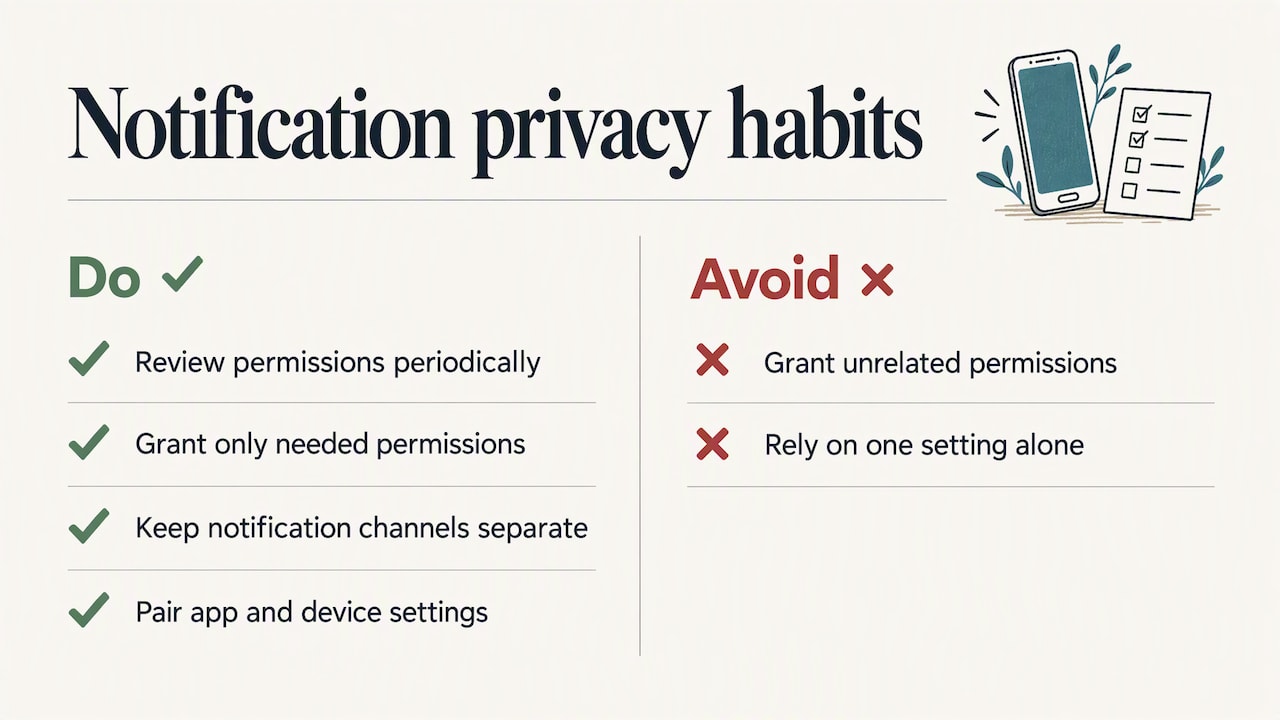
Review notification permissions periodically, since app updates or system changes can reset notification behavior to less private defaults without any explicit prompt. Treat this the same way you’d treat checking your phone’s lock screen settings: a quick, recurring check rather than a one-time task.
Grant only the permissions a recovery app actually needs, and decline anything unrelated to its core function. Keep notification channels separate where your device allows it, so a meeting reminder and a journaling prompt can have different visibility levels instead of one blanket setting covering both. Finally, pair in-app settings with your device’s own lock screen and Focus settings rather than relying on either one alone, since layering settings can provide extra privacy.
How do you clear notification history tied to recovery activity?
Notification history can linger in a few places even after you’ve dismissed the original alert, so clearing it fully takes more than swiping a banner away.
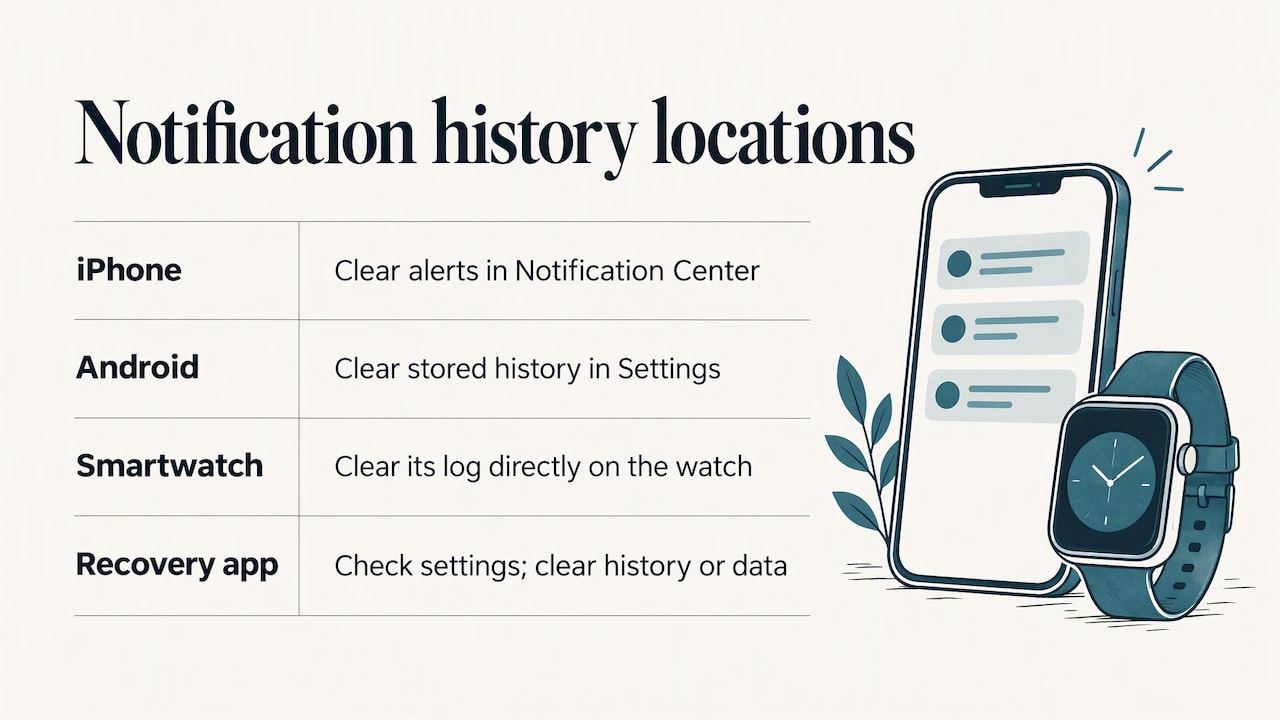
On iPhone, open Notification Center by swiping down from the top of the screen, then clear individual notifications or use the clear-all option if your device offers one. On Android, Security & Privacy settings include options for managing what appears in your notification history, and clearing that history removes the stored log of past alerts rather than just the current banner.
Smartwatches often keep their own separate notification log, so clear it on the watch directly rather than assuming clearing your phone handles both. If your recovery app keeps an in-app log of reminders or alerts sent, check its settings for a clear history or clear data option as well, since that log is separate from your phone’s system notification history. Doing this periodically, especially before lending a device to someone else or setting up screen sharing, keeps old alerts from resurfacing at an inconvenient moment.
Author perspective: practical, privacy-first advice for people in recovery
Recovery alerts carry a kind of weight that a calendar reminder doesn’t, and treating them with extra care isn’t overcautious, it’s reasonable. Layered defenses matter more here than any single setting, because one missed toggle on a watch or widget can undo careful work on a phone.
If zero-knowledge protection matters to you, Private mode is worth choosing deliberately rather than defaulting into Standard mode. Build the habit of testing your settings every so often rather than assuming they held after an update, and reach out to support if anything about your setup feels unclear.
— James
A privacy-minded recovery app worth considering
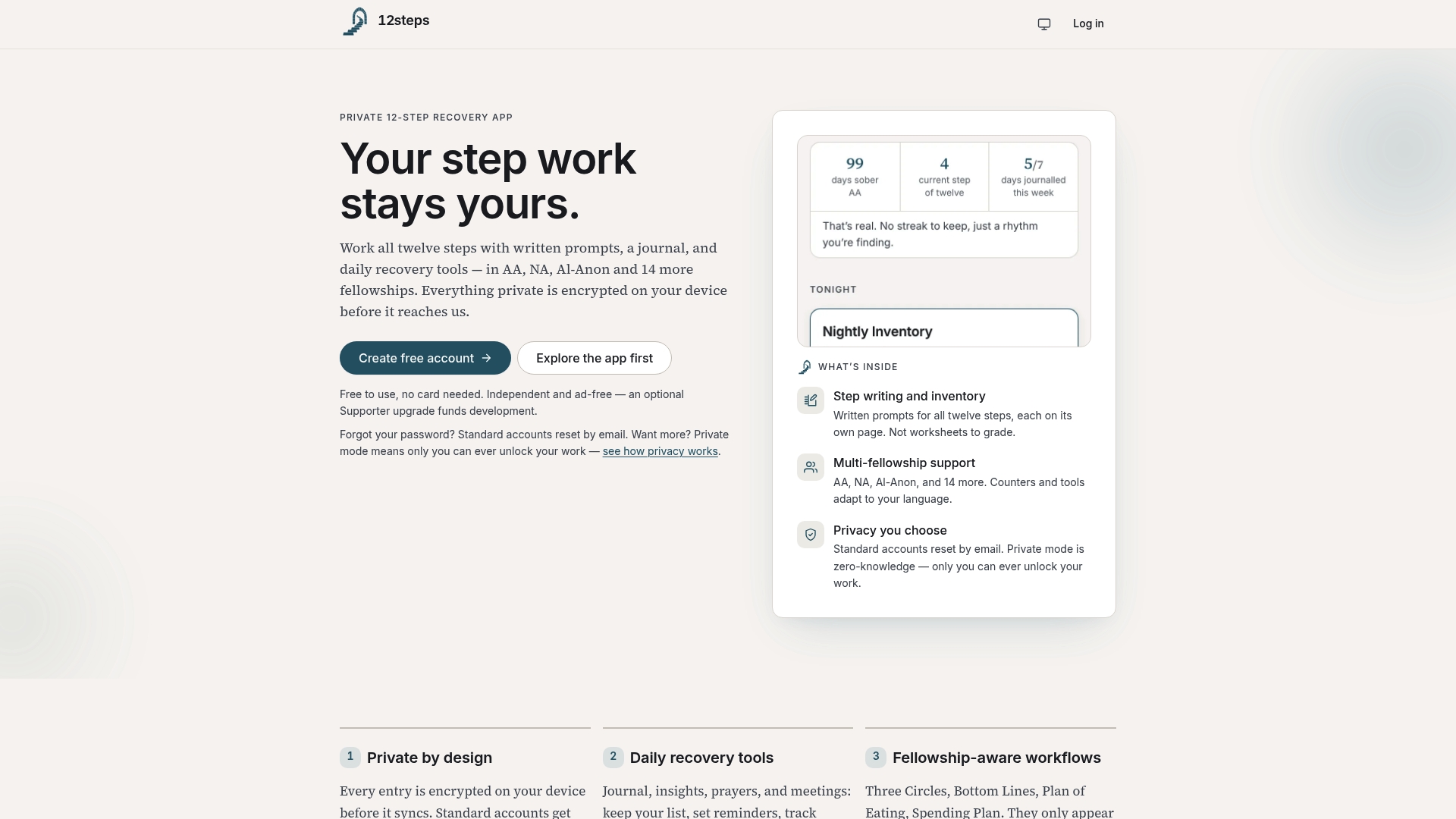
Device settings handle what shows on your screen, and our app handles what happens to your entries once you write them. Entries are encrypted on your device before they ever sync, and in Private mode we hold no key, so your step work stays unreadable to us by design.
- Daily tools like journaling, meeting reminders, and fellowship-specific prompts work across AA, NA, and other 12-step programs.
- Private mode gives you zero-knowledge protection, while Standard mode trades a bit of that guarantee for email password recovery if you ever lose access.
- The app offers recovery tools such as journaling, meeting reminders, and fellowship-specific prompts.
If discreet, private recovery support sounds like what you need, start with our 12Steps app and set up Private mode from the first login. Readers who want to support ongoing development can add the Supporter plan for £12 a year, and anyone looking for a meeting right now can find a 12-step meeting through our directory.
FAQ
How do I stop notification previews from showing on a lock screen?
Go to your phone’s notification settings, select the specific app, and set previews to Never or When Unlocked. This hides the message text while the screen is locked, which is the single most effective step for iPhone users and has an Android equivalent under Notifications on lock screen.
Do Apple Watch notifications automatically match my iPhone settings?
No, Apple Watch notification delivery is configured separately in the Watch app, so a hidden preview on your iPhone doesn’t guarantee the same behavior on your wrist. Check Hide Sensitive Complications under Display & Brightness as well.
What’s the difference between Private mode and Standard mode in 12Steps?
In Private mode, entries are encrypted on your device and we hold no key, so nobody on our end can read them. In Standard mode, entries are also encrypted on your device, but email password resets mean our server can recover the key if you need account access restored.
Can hiding notifications also hide reminders I actually want?
Yes, fully silencing an app’s notifications can mean missing a timely meeting reminder along with the content you wanted hidden. A better approach is usually to hide previews while keeping a basic alert sound or badge, so you still know something arrived.
Where can I get support if I’m in crisis right now?
If you’re in the US, call or text 988 for the Suicide and Crisis Lifeline, and if you’re in the UK or Ireland, call Samaritans at 116 123. Contact the relevant line for support.